
When X1Ticket finds available tickets, it displays them in a data grid with detailed information, allowing you to choose which tickets you want to purchase. You can either let X1Ticket complete the checkout process automatically, or you can buy the tickets manually using the built-in Chrome browser.

To proceed, double-click a ticket to start the checkout process—X1 will automatically complete the purchase for you. Alternatively, you can select a ticket with a left-click and choose “Manual Buy” from the top menu to handle the checkout yourself.
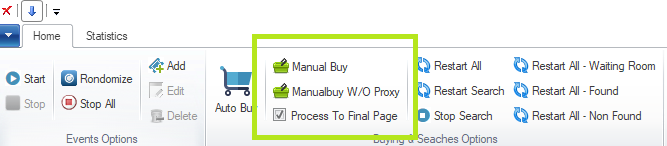
This will open the checkout page in Chrome, where you can manually enter your CVV and complete the purchase.
If the “Proceed to Final Page” option is enabled and the ticket is a release ticket, X1Ticket will prompt you to choose an account for automatic login, then open the checkout page in the browser.
If the “Proceed to Final Page” option is disabled, X1Ticket will open the login page, where you can enter your Ticketmaster email and password.
For waiting room (carted) tickets, manual checkout requires the original account used to cart the ticket. In this case, “Proceed to Final Page” must be disabled, since the ticket is already tied to a specific account and cannot be accessed through automatic login.


