
Follow this guide to get familiar with X1Ticket interface,we cover here all Event Options you can set
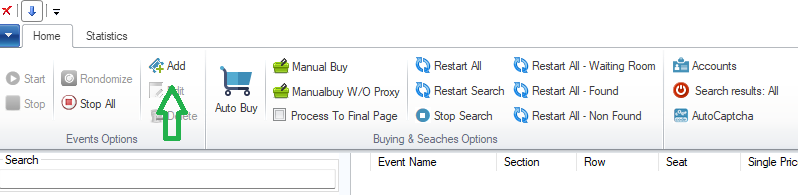
From the top menu click on Add button to add a new event as shown bellow
On the event interface, type the event url and name, type event code if any, you can choose to exclude and ignore
verified resale and platinum, you can also specify TicketType or type search string for example “Standard”, you can
search for tickets between min and max price ,choose specific section, specify if you want to automatically buy found
tickets. If you are searching for drop, check the Drop Mode, depends on your subscription plan, you can choose how
threads will present to ticket site, you can choose web,mobile or iPhone emulation
Now click on More Parameter to set how x1Ticket will select delivery option, it can auto select from the list or ask
Some appy for Account Settings, it can auto select account during autobuy, select specific accounts from the list
or present you with accounts to select from manually
Now Click Save And Start to start runing the event or just Save so you can find the event to run it later.
Event Options
- Event URL:
The Ticketmaster or Livenation event Url - Event Name:
Type a name for the event - Exclude Verified Resale:
If checked X1Ticket will ignore verified resale tickets - Exclude Platinum:
If checked X1Ticket will ignore Platinum tickets when searching - Map Searching:
If checked X1Ticket will use the map when searching tickets instead of using the quickpick left panel
on recent Ticketmaster and Livenation version, some event only allow map searching. - Use TM Verified:
Check this if the event is Verified Fan, when checked a TM Verified tab appears when you can put
verified fan codes for each account - Automatically Buy:
If checked X1Ticket will automatically buy tickets using Accounts you selected to use for that event - Password/Code:
Type here password to unlock locked ticket type, you can add multiple codes like shown bellow
- Drop Mode:
Check to search for ticket releases - Searches:
Number of threads to start for that event - Use Custom Proxy:
If checked, X1Ticket use your custom proxy instead the build-in residential proxy - Captcha Services:
choose captcha answering service to use for the event, select at least one, you can add more captcha services - Use Proxy in Captcha service:
If checked,when X1Ticket has to solve a captcha it will use proxy to connect to captcha service - Play alert sound:
If checked, you will hear an alert sound whenever a new ticket is found, you can modify the default alert sound
from top menu More settings–Alert Sound - Send email:
- Usefull specially in drop mode when Automatically Buy is not set, you get an email notification when new ticket is
found, you can add more email or change email for notification from top menu More setting–Email
More Parameter
- Select delivery option at runtime:
If checked, X1Ticket will prompts options at runtime on buying tickets - Select delivery from the list:
If checked, X1Ticket will select delivery option from the list, you can check one or multiple option to choose from - Ticket find criteria:
You can type preferred Section and Rows, check Ticket Filtering
Account Settings
- Select account during auto buying:
If checked, select an account group to be used for the event, if Automatically Buy option is check, X1Ticket will
auto choose accounts form the selected group - Select accounts from the list:
If checked, you can select specific accounts from the list
For more information about how to add/import your accounts, reffer to Importing Accounts section


